What Is the Difference Between WiFi and Internet? (Complete 2026 Guide)
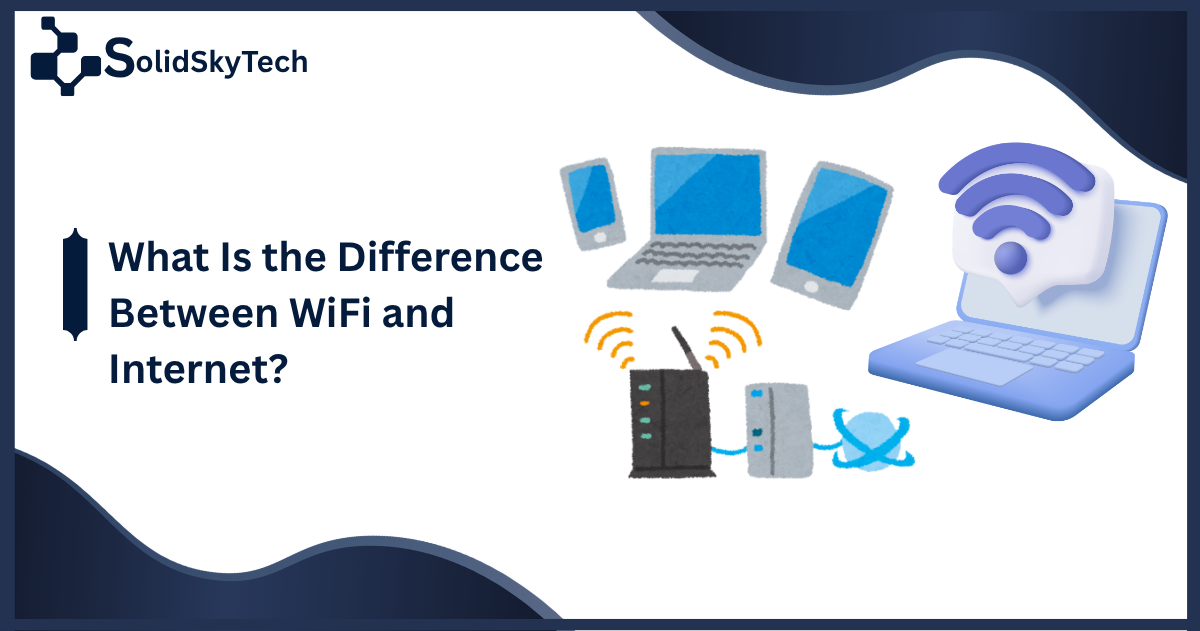
Quick Answer: WiFi is a short-range wireless technology that connects your devices to a local router. The Internet is the global network of billions of computers, servers, and data centers that your router then connects to. WiFi is the road inside your home — the Internet is the entire highway system that road connects to. You can have WiFi without Internet, and Internet without WiFi.
Why So Many People Confuse WiFi and Internet
The confusion between WiFi and the Internet is one of the most common technology mix-ups in everyday life — and it is completely understandable. When you connect to WiFi, you almost instantly gain access to the Internet. When the Internet goes down, your WiFi bars often look just fine. When you call your provider about an “internet problem,” they ask about your “WiFi signal.” The two concepts get bundled together so consistently that most people treat them as the same thing.
They are not. Understanding the difference between WiFi and the Internet is not just a technical exercise — it directly helps you troubleshoot connection problems, make better decisions about your equipment, and understand why your WiFi can be connected while your internet still does not work.
What Is the Internet?
The Internet is a global network that connects billions of devices — computers, smartphones, servers, smart TVs, and everything in between — across the world. It is the infrastructure that makes it possible to send an email to Japan, stream a video from a server in the United States, or video call someone in the United Kingdom, all within seconds.
Think of the Internet as the world’s largest postal system. Trillions of small packets of data travel across physical cables, fiber optic lines, satellite links, and wireless towers every second — much like letters moving through sorting facilities, delivery trucks, and postal routes. The Internet Protocol (IP) is the addressing system that ensures every packet of data knows where it came from and where it is going.
How the Internet reaches your home
Your Internet connection begins at your Internet Service Provider (ISP) — companies like Comcast, AT&T, Verizon, BT, or Starlink. These companies own and maintain vast physical infrastructure: underground fiber optic cables, data centers, network nodes, and in some cases, satellites in orbit.
The journey from the Internet to your device goes like this:
- Your ISP’s network connects to the global Internet backbone — a system of ultra-high-speed fiber optic cables that carry data between continents and countries
- From the backbone, data travels through your ISP’s regional network to your neighborhood
- From there, it reaches your modem through a physical line — coaxial cable, fiber, DSL telephone line, or wireless signal
- Your modem translates that signal into a form your home network can use
- Your router then distributes that connection to devices in your home — via WiFi or Ethernet cables
The Internet is the entire system from step 1 through step 4. Your WiFi only comes into play at step 5.
What the Internet actually is
The Internet is not a single thing owned by a single company or government. It is a cooperative, decentralized system of networks — millions of interconnected networks run by ISPs, universities, corporations, and governments — all using a common set of protocols (rules) to communicate with each other. No single entity owns or controls the Internet.
What Is WiFi? How It Actually Works
WiFi (short for Wireless Fidelity) is a wireless networking technology that allows devices to connect to a local network — typically your home or office router — without physical cables. WiFi uses radio waves in the 2.4 GHz and 5 GHz frequency bands to transmit data between your device and your router.
WiFi is a local technology. Its range is limited — typically 30 to 100 meters depending on your router, walls, and interference. It does not connect you to the Internet by itself. It connects your device to your router, and then your router connects to the Internet through your modem and ISP.
The WiFi connection path — step by step
When you connect your laptop to your home WiFi network, here is what actually happens:
- Your laptop’s wireless adapter broadcasts a request to join the network
- Your router authenticates the device (checks the password)
- Your router assigns the device an IP address on your local network
- Your device is now on the local network — it can see other devices on the same network (printers, smart TVs, network drives)
- When your device requests a website, the router forwards that request to the modem, which sends it to your ISP, which retrieves it from the Internet
Steps 1 through 4 are WiFi. Steps 5 and beyond are the Internet.
WiFi without the Internet
It is entirely possible to have a working WiFi network with no Internet connection at all. Many smart home devices, local file servers, printers, and network-attached storage devices communicate over your local WiFi network without ever touching the Internet. In office environments, local WiFi networks often run internal applications and file sharing completely independently of Internet access.
WiFi vs Internet: Key Differences Side by Side
| Feature | Internet | WiFi |
|---|---|---|
| What it is | Global network of billions of devices | Local wireless technology connecting devices to a router |
| Scale | Worldwide | Typically 30–100 meters |
| Who provides it | Internet Service Providers (ISPs) | Your router (often supplied by ISP or purchased separately) |
| Physical infrastructure | Fiber optic cables, satellites, cell towers, data centers | Radio waves from your router |
| Can exist without the other? | Yes — wired Ethernet gives Internet without WiFi | Yes — local WiFi network can exist without Internet |
| Speed affected by | ISP plan, network congestion, line quality | Router hardware, distance, interference, WiFi standard |
| What goes wrong during outages | ISP outage, line damage, modem failure | Router issues, interference, device driver problems |
| Security scope | Encrypted data traveling across global infrastructure | Encryption of the wireless link between device and router |
Real-Life Scenarios That Show the Difference
These everyday situations illustrate exactly how WiFi and the Internet operate as separate layers.
Scenario 1: WiFi connected, but no Internet
You open your laptop. The WiFi icon shows full bars and says “Connected.” But when you open a browser, you get an error: “No Internet connection.”
What happened: Your device successfully connected to your router via WiFi. But your router could not reach the Internet — perhaps because your ISP is experiencing an outage, your modem lost its connection, or your router lost its WAN (wide area network) IP address.
The fix: The WiFi part of your connection is working fine. The problem is between your router and your ISP. Power cycling your modem and router, or checking your ISP’s outage map, is the right approach — not reconnecting to WiFi.
Scenario 2: Strong WiFi signal, very slow speeds
Your WiFi shows five bars of signal strength, but videos buffer and pages load slowly.
What happened: The WiFi connection between your device and router is strong (good signal). But your Internet connection — the link between your router and your ISP — is slow. This could be caused by ISP throttling, network congestion at peak hours, or a plan that does not provide enough bandwidth for your household’s usage.
The fix: Run a speed test while plugged directly into your modem via Ethernet. If speeds are low there too, the problem is your ISP or your plan — not your WiFi equipment.
Scenario 3: Internet working on phone, not on laptop
Your phone loads websites fine over WiFi. Your laptop shows WiFi connected but cannot load pages.
What happened: The Internet itself is fine. The WiFi connection on your laptop specifically has a problem — possibly a corrupted network driver, a conflicting IP address, or a power-saving setting that disabled the wireless adapter.
The fix: This is a device-specific WiFi issue, not an Internet or router problem.
WiFi Standards Explained: 2.4GHz, 5GHz, WiFi 6, WiFi 6E
WiFi technology has evolved significantly over the past two decades. Understanding the different standards helps you make informed decisions about your equipment and optimize your home network.
2.4GHz vs 5GHz — the two main bands
Most modern routers broadcast on both 2.4GHz and 5GHz simultaneously, appearing as two separate network names (SSIDs) or combining them automatically through band steering.
2.4GHz band: This older frequency band offers longer range and better wall penetration, making it ideal for devices far from the router or on different floors. However, it is a heavily congested spectrum — shared by microwave ovens, baby monitors, Bluetooth devices, and dozens of neighboring networks. Maximum real-world speeds on 2.4GHz rarely exceed 100 Mbps in typical home environments. Best for: smart home devices, IoT gadgets, and devices far from the router.
5GHz band: This newer frequency band is faster and significantly less congested than 2.4GHz, but its signals do not travel as far and are more easily blocked by walls and physical obstacles. Real-world speeds can reach 400–600 Mbps on modern routers. Best for: laptops, streaming devices, gaming consoles, and any device within reasonable range of the router.
WiFi 6 (802.11ax) — the current standard
WiFi 6, introduced commercially in 2019 and now the dominant standard in new routers, delivers several major improvements over its predecessors:
Higher throughput: Maximum theoretical speeds of up to 9.6 Gbps (compared to 3.5 Gbps for WiFi 5), though real-world speeds depend heavily on your Internet plan and device capabilities.
OFDMA technology: WiFi 6 can serve multiple devices simultaneously rather than taking turns, dramatically improving performance in households with many connected devices — smart TVs, phones, laptops, tablets, smart speakers, security cameras, and IoT devices all competing for bandwidth.
Target Wake Time (TWT): Smart home and IoT devices on WiFi 6 networks communicate with the router on a scheduled basis rather than constantly, which significantly extends battery life on wireless sensors and smart devices.
Better performance in congested areas: Apartments and dense neighborhoods with many overlapping networks see significantly better performance on WiFi 6 hardware.
WiFi 6E — the newest frontier
WiFi 6E extends WiFi 6’s capabilities into the 6GHz frequency band, a brand-new spectrum largely free of interference from older devices. WiFi 6E offers extremely low latency and multi-gigabit speeds for compatible devices, making it the best option for demanding applications like VR, 8K streaming, and cloud gaming. However, 6GHz signals have even shorter range than 5GHz and require both a WiFi 6E router and a WiFi 6E-compatible device.
Ways to Access the Internet Without WiFi
WiFi is the most common way to access the Internet at home, but it is far from the only one. Here are the main alternatives:
Ethernet (wired connection): A physical Ethernet cable connects your device directly to your router or modem. Ethernet is faster, more stable, more secure, and has lower latency than WiFi. It is the recommended connection method for desktop computers, gaming consoles, smart TVs, and any device that does not need to move around.
Mobile data (4G/5G): Your smartphone connects to the Internet directly through your mobile carrier’s cell towers — no WiFi required. Modern 5G connections can match or exceed home broadband speeds in areas with strong coverage.
Mobile hotspot: Your smartphone can share its mobile data connection with other devices via a personal hotspot, effectively creating a temporary WiFi network that routes through cellular data rather than a home broadband line.
Fixed wireless Internet: Some ISPs deliver Internet access to homes and businesses via radio towers rather than physical cables — particularly common in rural and suburban areas. The service arrives at a receiver antenna mounted on your home, then connects to a router inside.
Satellite Internet: Services like Starlink and HughesNet beam Internet access from satellites in orbit. Starlink’s low-Earth orbit constellation offers latency comparable to broadband (20–60ms) and speeds of 50–200 Mbps, making it a viable option for rural locations without cable or fiber infrastructure.
WiFi vs Ethernet: Which Should You Use?
Now that you understand the difference between WiFi and the Internet, it is worth addressing a related question: within your home, should you use WiFi or Ethernet to connect your devices to the router?
| Factor | WiFi | Ethernet |
|---|---|---|
| Speed | Good — limited by interference and distance | Excellent — near line-speed performance |
| Latency | 5–20ms typical | 1–2ms typical |
| Stability | Variable — drops possible | Extremely stable |
| Mobility | Full — move anywhere in range | None — cable required |
| Security | Encrypted, but wireless signals can be intercepted | Harder to intercept — physical access required |
| Best for | Smartphones, tablets, laptops, smart home devices | Desktops, gaming consoles, smart TVs, NAS devices |
| Setup effort | Easy — no cables | Requires running cables |
For most households, a hybrid approach works best: Ethernet for stationary, performance-critical devices (desktop PC, gaming console, smart TV, home office setup) and WiFi for mobile devices (phones, tablets, laptops used around the house).
Common Misconceptions Debunked
“My WiFi is slow” vs “My Internet is slow” These are different problems with different causes and different fixes. Slow WiFi is a local issue — router placement, interference, too many devices, outdated hardware. Slow Internet is an ISP issue — plan speed, congestion, throttling, or line quality. Always test with a wired Ethernet connection first to identify which layer the problem is on.
“Better WiFi means faster Internet” Upgrading to a WiFi 6 router will not make your Internet faster if your ISP plan is the bottleneck. If you pay for 100 Mbps and your router supports 1 Gbps over WiFi, you will still only ever get 100 Mbps. Your Internet speed is always capped by your ISP plan.
“Public WiFi means free Internet” Public WiFi is a local network — a router in a café, airport, or hotel that someone else pays to connect to the Internet. The WiFi access may be free, but someone is paying the ISP bill behind it.
“WiFi and Internet come from the same device” In many homes, the modem and router are combined into a single gateway device supplied by the ISP. This creates the impression they are one thing. They are two separate functions: the modem handles the Internet connection from the ISP, and the router (including its WiFi radio) handles distributing that connection to your devices locally.
“Turning off WiFi disconnects you from the Internet” Turning off WiFi on your device simply disconnects you from your local network wirelessly. If you plug in an Ethernet cable, you still have Internet access. The Internet does not care how you reach it — through WiFi, Ethernet, or cellular data.
WiFi vs Internet at a Glance
| WiFi | Internet | |
|---|---|---|
| What it connects | Your device to your router | Your home to the world |
| Who controls it | You (your router settings) | Your ISP |
| Range | Your home or office | Global |
| Can fail independently | Yes | Yes |
| How to improve it | Better router, placement, less interference | Upgrade ISP plan, better modem |
| Speed limit | Your router’s WiFi standard | Your ISP plan speed |
Frequently Asked Questions
What is the difference between WiFi and Internet in simple terms?
The Internet is the global network that stores and transmits information between billions of devices worldwide. WiFi is the wireless technology inside your home or office that connects your devices to a local router. That router then connects to the Internet through your ISP. Think of the Internet as a city’s water supply system, and WiFi as the pipes inside your house that deliver the water to each room.
Can you have WiFi without the Internet?
Yes, absolutely. A WiFi network is simply a local wireless network. You can have a fully functioning WiFi network — with devices connected and communicating with each other — with no Internet connection at all. This is common in office environments running local servers, in homes with network-attached storage devices, or in any situation where a local network is active but the ISP connection has gone down.
Can you have the Internet without WiFi?
Yes. Any device connected via an Ethernet cable, mobile data, or fixed wireless connection has Internet access without using WiFi at all. WiFi is just one of many ways to access the Internet.
Why is my WiFi connected but there is no Internet?
This is one of the most common home networking problems. It means your device successfully connected to your router (WiFi is working) but your router cannot reach the Internet — usually because of an ISP outage, a modem issue, or a lost WAN connection. Power cycling your modem and router (unplug both for 60 seconds, plug modem in first, then router) resolves this in most cases. If the problem persists, check your ISP’s outage map.
Does a better router give you faster Internet?
A better router can improve your WiFi performance — faster speeds over wireless, better range, support for more devices simultaneously. But it cannot increase your Internet speed beyond what your ISP plan provides. If you pay for 200 Mbps Internet, you will get a maximum of 200 Mbps regardless of how advanced your router is.
Is WiFi 6 worth upgrading to?
WiFi 6 is worth upgrading to if your current router is more than 4–5 years old, if you have more than 10 devices connected simultaneously, or if you experience slowdowns during peak usage hours at home. WiFi 6 handles congestion and multiple simultaneous connections far more efficiently than older standards. However, to benefit fully, both your router and your devices need to support WiFi 6.