Is WiFi the Same as Internet
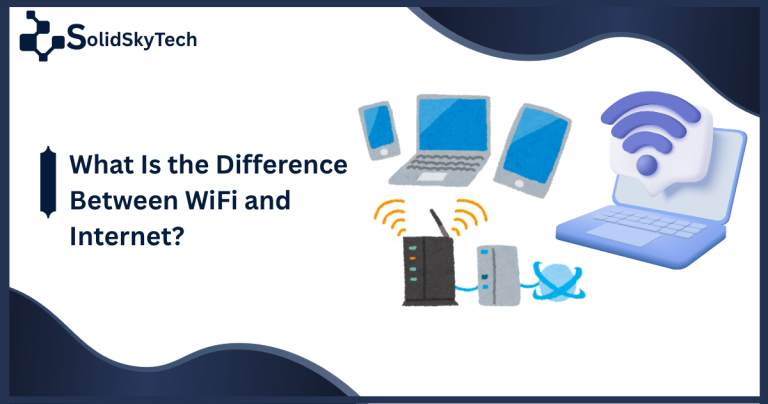
| No — WiFi and the internet are not the same thing. WiFi is a short-range wireless signal that connects your device to a router inside your home or building. The internet is a massive, planet-spanning network of billions of connected computers and servers. WiFi is simply one pathway your device uses to reach the internet — like a driveway that leads to a global highway system. |
Why This Confusion Exists – And Why It Matters
Here is a scenario most people have lived through: your phone shows full WiFi bars, yet every webpage refuses to load. You restart the router, maybe call your ISP, all while blaming the WiFi. But the WiFi was never broken. The internet connection behind it was.
That single misunderstanding costs people hours of pointless troubleshooting every day. It also leads to poor purchasing decisions, buying expensive new routers expecting faster internet, or tolerating a slow ISP plan, thinking a hardware upgrade will fix it. This article answers every major question about WiFi and the internet completely, correcting every myth and misinformation along the way.
Definitions: What Each One Actually Is
What Is WiFi?
WiFi is a wireless local area network (WLAN) technology governed by a family of standards called IEEE 802.11. It uses radio waves — at frequencies of 2.4 GHz, 5 GHz, or 6 GHz — to create a short-range wireless link between your device and a nearby router or access point.
That link typically covers 30 to 100 meters indoors. WiFi’s sole job is to replace the physical ethernet cable between your device and your router. It does not generate internet access, own any servers, or carry data across cities. It simply creates a wireless bridge across a short local distance.
| Fact Check — The ‘Wireless Fidelity’ Myth |
| Claim: “WiFi stands for Wireless Fidelity.” |
| Truth: WiFi does not stand for anything. It is a brand name coined by marketing firm Interbrand in 1999, chosen purely for its catchy sound. Wi-Fi Alliance co-founder Phil Belanger confirmed: ‘Wi-Fi doesn’t stand for anything.’ The Alliance briefly used the tagline ‘The Standard for Wireless Fidelity’ then dropped it. This myth persists across AI-generated content and reference sites — it is definitively false. |
What Is the Internet?
The internet is a global network of interconnected networks, a system linking billions of devices, servers, data centers, and infrastructure points across every continent. It grew from a US Department of Defense project called ARPANET in the late 1960s.
The physical backbone of the internet includes hundreds of thousands of kilometers of undersea fiber-optic cables, land-based fiber and copper lines, massive data centers, routing equipment, and Internet Exchange Points (IXPs) where networks hand off traffic to one another. When you stream a video, send an email, or load a webpage, your data travels through this infrastructure — potentially crossing oceans, in milliseconds. WiFi is only responsible for the last few meters of that entire journey.
What Is a Router and What Does It Do?
A router is a networking device that manages your local network (LAN) and acts as the gateway between your home devices and the internet. It performs three critical functions:
- IP Address Assignment (DHCP): It automatically assigns a unique local IP address to every device that connects, your phone, laptop, smart TV, and so on.
- Network Address Translation (NAT): It maps all your local devices to a single public IP address provided by your ISP, allowing multiple devices to share one internet connection.
- Traffic Direction: It reads incoming and outgoing data packets and sends them to the correct device or to the internet as required.
Most home ‘routers’ are actually gateway devices combining a router, wireless access point, and network switch, and sometimes even a modem, all in one box.
What Is a Modem and How Is It Different from a Router?
A modem (modulator-demodulator) is the device that connects your home network to your ISP’s infrastructure. It translates signals between the format your ISP uses and the digital format your router and devices understand.
Different internet connection types require different modem technologies:
- Cable modem (DOCSIS): Used with cable internet — converts signals over coaxial cable. DOCSIS 3.1 supports speeds up to 10 Gbps downstream.
- Fiber ONT (Optical Network Terminal): Used with fiber internet — converts optical light signals into digital Ethernet signals. This is why fiber internet is typically the fastest and most reliable type.
- DSL modem: Used with DSL internet — transmits data over traditional telephone copper lines. Maximum speeds are approximately 100–200 Mbps for VDSL, making it slower than cable or fiber.
- Cable/DSL gateway: A combined modem and router in one device — common in home setups provided by ISPs.
The key distinction: the modem handles the connection from your home to the outside internet. The router manages traffic within your home. WiFi is how your devices connect wirelessly to the router.
| Device | What It Does | Required for Internet? | Required for WiFi? |
| Modem | Required for the Internet? | Yes | No (WiFi needs a router) |
| Router | Manages local network | No (but needed for multiple devices) | Yes (broadcasts the WiFi signal) |
| WiFi Access Point | Wireless radio broadcast | No | Yes |
| Gateway (combo) | Modem + Router combined | Yes | Yes |
How WiFi and the Internet Work Together
Most people think of internet access as two steps: connect to WiFi, then use the internet. The reality involves six distinct layers, each performing a separate function. Understanding this chain is the single most useful piece of networking knowledge for everyday troubleshooting.
| The Complete 6-Step Connection Chain |
| Step 1 — Your Device: Your phone, laptop, or tablet sends data using its built-in WiFi radio adapter. |
| Step 2 — The Wireless Link (WiFi): Radio waves carry your data through the air to the nearest access point — typically your router. This is the WiFi portion of the journey. |
| Step 3 — The Router: Receives your data, applies NAT, assigns priorities, and forwards traffic toward the internet via the modem. |
| Step 4 — The Modem: Converts your router’s digital signals into the format your ISP requires — optical pulses for fiber, coaxial signals for cable, or telephone-line signals for DSL. |
| Step 5 — The ISP Network: Your data travels through your Internet Service Provider’s regional and national infrastructure. |
| Step 6 — The Internet Backbone: Your data enters the global internet — fiber lines, undersea cables, routing hubs — and reaches the destination server anywhere in the world. The response travels the exact same chain in reverse back to your device. |
How Does WiFi Signal Travel to Your Device?
WiFi uses radio waves — the same category of electromagnetic radiation as AM/FM radio, but at much higher frequencies. Your router continuously broadcasts radio signals in all directions, and your device’s WiFi adapter listens for and responds to these signals.
The three WiFi frequency bands behave differently:
- 2.4 GHz: Travels farther and penetrates walls better, but is more congested (shared with microwaves, Bluetooth, baby monitors) and has fewer non-overlapping channels. Maximum real-world speeds are roughly 100–150 Mbps.
- 5 GHz: Faster but shorter range — walls and obstacles reduce the signal more significantly. Less congested with more available channels. Real-world speeds typically 200–600 Mbps.
- 6 GHz (WiFi 6E and WiFi 7 only): Even faster, with the most available spectrum and least interference — but the shortest range and newest, so fewer devices support it.
How Does a Modem Bring Internet Into Your Home?
Your ISP delivers internet connectivity to your home through a physical medium — a coaxial cable, fiber-optic line, or telephone wire. The modem sits at the boundary between your home network and this ISP infrastructure.
For fiber internet: Light pulses carrying your data travel through glass fiber-optic cables at close to the speed of light. The ONT (Optical Network Terminal) at your home converts these pulses into digital ethernet signals your router can process. This is why fiber consistently offers the fastest speeds and lowest latency.
For cable internet: Data travels over coaxial cables originally designed for television. A DOCSIS modem modulates and demodulates these cable signals. Cable is a shared medium — multiple households share the same cable segment, which can cause slowdowns during peak hours in your neighborhood.
For DSL internet: Data travels over traditional copper telephone lines using frequencies above the voice range. DSL speeds are limited by the quality and length of the copper line between your home and the telephone exchange.
What Is an ISP and What Role Does It Play?
An ISP (Internet Service Provider) is the company that sells you access to the internet and maintains the infrastructure connecting your home to the global internet backbone. Examples include Comcast, AT&T, Verizon, BT, and thousands of regional providers worldwide.
Your ISP is responsible for the internet connection the WAN (Wide Area Network) side of your modem. If your ISP is experiencing an outage, no router or WiFi upgrade can restore internet access because the problem is entirely outside your home network. When troubleshooting, if all devices lose internet simultaneously and your modem shows no WAN connection, contacting your ISP is the correct next step.
What Happens at Each Point of Failure?
Because the connection chain has multiple distinct links, problems can occur at any single one while others remain healthy. This is the practical heart of why understanding WiFi vs. internet matters:
- WiFi fails, internet intact: The router’s wireless radio has a problem. Devices on the Ethernet cable still have full internet. Restart the router. Check wireless settings.
- Internet fails, WiFi intact: The modem or ISP connection is down. All devices — WiFi and Ethernet alike — lose internet. Your local WiFi network still works for local tasks. Restart the modem; if no improvement, call your ISP.
- WiFi shows connected, but the internet does not work: The most common confusion point. Your device successfully joined the WiFi network (the local radio link works), but the internet connection beyond the router has failed. This is an ISP or modem issue — not a WiFi issue.
- Both fail simultaneously: Usually, the gateway device (combined modem-router) has crashed. Restart both in sequence: modem first, wait 60 seconds, then router.
- Slow on WiFi, fast on Ethernet: WiFi is the bottleneck — distance from router, interference, or an older WiFi standard is limiting wireless speeds, while the internet connection itself is healthy.
WiFi vs Internet vs Other Connections — Full Comparison
WiFi vs Internet: Side-by-Side Comparison
| Feature | WiFi | The Internet |
| What it is | Local wireless networking standard (IEEE 802.11) | Global network of interconnected networks (TCP/IP) |
| Geographic reach | 30–100 meters indoors | Worldwide — every continent |
| Who governs it | IEEE + Wi-Fi Alliance | IETF (Internet Engineering Task Force) |
| Physical infrastructure | Router, access point, radio waves | Undersea cables, fiber lines, data centers, IXPs |
| Can work without the other? | Yes — local tasks without internet | Yes — ethernet, cellular, satellite all access it |
| What it replaces | The ethernet cable between device and router | Nothing — it is the destination network itself |
| Who provides it | You (via your router setup) | Your ISP (Internet Service Provider) |
| Speed determinant | WiFi standard, signal strength, interference | ISP plan, backbone congestion, server capacity |
WiFi vs Ethernet – Which Is Better and Why?
Ethernet is a wired connection standard that directly connects your device to the router via a physical cable (RJ-45). It is the alternative to WiFi for devices that stay in one location.
| Factor | WiFi | Ethernet |
| Speed | Up to 9.6 Gbps theoretical; 200–1,200 Mbps typical | Up to 10 Gbps; consistently near line rate |
| Latency | 5–50ms typical (varies with interference) | 1–5ms typical (highly consistent) |
| Stability | Affected by walls, distance, interference | Highly stable — no wireless interference |
| Mobility | Full mobility within signal range | Device must stay near the cable connection |
| Security | Can be intercepted wirelessly if unsecured | Requires physical access to intercept |
| Best for | Phones, tablets, laptops, smart home devices | Desktops, gaming consoles, smart TVs, NAS |
For activities where consistency matters most — online gaming, video calls, 4K streaming, large file transfers — ethernet is the superior choice whenever a device is stationary. WiFi is best when mobility or convenience is required.
WiFi vs Mobile Data – How Are They Different?
Both WiFi and mobile data (4G LTE, 5G cellular) give your smartphone or tablet access to the internet, but they do so through entirely different infrastructure and mechanisms.
| Factor | WiFi | Mobile Data (4G/5G) |
| Infrastructure | Your router + ISP home connection | Cell towers operated by mobile carriers |
| Coverage area | Short range — your home or building | Wide area — cities, highways, rural zones |
| Speed | Typically faster at close range | 5G can rival or exceed WiFi in coverage areas |
| Cost | Usually included in home internet plan | Billed per GB or as part of mobile plan |
| Requires SIM card? | No | Yes |
| Best use case | Home, office, fixed location use | On the go, travel, areas without WiFi |
| Security | Private network (if secured at home) | Encrypted by carrier, generally secure |
When your phone is at home, it typically uses WiFi to access the internet — saving mobile data and usually getting faster speeds. When you leave, it automatically switches to cellular data. Both are paths to the same internet; they simply use different roads to get there.
What Is a Local Network (LAN) and How Is It Different from the Internet?
A Local Area Network (LAN) is a private network confined to a specific physical location – your home, office, or building. Your WiFi network and any Ethernet-connected devices all exist on the same LAN. They can communicate with each other directly without using the internet at all.
The internet, by contrast, is the Wide Area Network (WAN) that connects your LAN to every other network in the world. Your router acts as the gatekeeper – managing traffic within the LAN and forwarding external requests to the internet.
- LAN examples: Two laptops sharing files on your home network. A phone prints to a wireless printer. A smart TV streaming from a local NAS drive.
- Internet examples: Loading a website. Sending an email. Making a video call. Streaming from Netflix.
Understanding the LAN vs. internet distinction is essential for troubleshooting: if two devices can communicate on your local network but neither can reach the internet, the problem is your WAN connection (modem or ISP) — not your WiFi or LAN.
The Biggest Myths – Corrected with Facts
More WiFi Signal Bars = Faster Internet
FALSE. WiFi signal bars measure RSSI (Received Signal Strength Indicator) – the raw power level of the radio signal reaching your device, measured in dBm. Full bars mean your device has a strong wireless connection to your router. They say absolutely nothing about your internet speed.
Internet speed depends on your ISP plan, server load, network congestion, and your device’s capability — none of which are reflected in signal bars. You can have full bars and completely unusable internet (if your ISP is down). You can have two bars and fast internet (if you are near the router, but the channel is clean and the ISP plan is strong).
| Fact Check — Signal Bars vs Internet Speed |
| Truth: Full bars only confirm that the radio link between your device and the router is strong. A microwave oven running nearby can collapse your real-world WiFi throughput while leaving signal bars completely unchanged — because bars measure signal power, not signal quality, not internet speed, and not ISP status. Always test internet speed separately from checking signal strength. |
| Truth: Full bars only confirm that the radio link between your device and the router is strong. A microwave oven running nearby can collapse your real-world WiFi throughput while leaving signal bars completely unchanged, because bars measure signal power, not signal quality, not internet speed, and not ISP status. Always test internet speed separately from checking signal strength. |
Buying a New Router Will Speed Up Your Internet
MOSTLY FALSE. Your maximum internet speed is always capped by your ISP plan — not your router. If you pay for 100 Mbps internet, the most capable WiFi 7 router in the world will deliver 100 Mbps of internet speed, not more.
A new router can genuinely help in one specific scenario: if your existing router is the bottleneck — for example, an old WiFi 4 router limiting wireless speeds to 150 Mbps when you have a 500 Mbps fiber plan. In that case, a newer router unlocks speeds you are already paying for but not receiving. Upgrading your router does not increase internet speed — it can only remove an existing wireless limitation.
The WiFi Is Down’ Always Means ‘The Internet Is Down’
INCORRECT. These describe two completely different failure points. ‘WiFi is down’ means the wireless radio connection between your device and router has failed. ‘Internet is down’ means the connection from your router to the outside world has failed.
Your local WiFi network can be fully functional while the internet connection is completely down. You can still print wirelessly, transfer files between devices, and access local network resources — you simply cannot reach any website or online service. The reverse is also possible: a router with a faulty wireless radio can have a perfectly healthy internet connection accessible to any device plugged in via Ethernet.
Public WiFi Means Safe Internet Access
FALSE. Public WiFi networks in cafés, airports, and hotels give you a path to the internet, but that path travels through a network you do not control and cannot verify. Without a VPN or HTTPS encryption, data on unsecured public WiFi can potentially be intercepted by anyone else on the same network.
The internet connection behind public WiFi may be perfectly functional, but the WiFi network through which you access it introduces security risks not present on your private home network. Always use HTTPS websites (the padlock in your browser) and consider a VPN when using public WiFi for sensitive tasks.
Turning Off WiFi Disconnects You from the Internet
ONLY IF WIFI IS YOUR ONLY CONNECTION. On a smartphone with mobile data enabled, turning off WiFi simply switches your internet path from the WiFi route to the cellular route. You remain connected to the internet without interruption. The internet itself is unchanged — only the delivery pathway switches.
On a laptop with only a WiFi adapter and no cellular capability, turning off WiFi does disconnect you from the internet — but only because no other pathway exists, not because WiFi and internet are the same thing.
WiFi Standards, Speed, and What AI Gets Wrong
Theoretical Speed vs Real-World Performance
WiFi speed specifications advertised on router boxes are theoretical maximum values achievable only under laboratory-perfect conditions with every possible advantage simultaneously. No real-world home environment achieves them. Here is the reality:
| WiFi Standard | Theoretical Max | Realistic Single-Device Speed | Key Limitation |
| WiFi 4 (802.11n) | 600 Mbps | 50–200 Mbps | MIMO limited; older modulation |
| WiFi 5 (802.11ac) | 3.5 Gbps | 200–600 Mbps | 5 GHz only; MU-MIMO downlink only |
| WiFi 6 (802.11ax) | 9.6 Gbps | 600–1,200 Mbps | Requires 8×8 MIMO + 160 MHz channels for peak |
| WiFi 6E (802.11ax) | 9.6 Gbps | 600–2,000 Mbps | Same standard as WiFi 6; benefit is 6 GHz band access |
| WiFi 7 (802.11be) | 46 Gbps | 1,000–5,000 Mbps | Ratified Sept 2024; Multi-Link Operation is exclusive feature |
| Fact Check — WiFi 5 Frequency Band Error |
| Claim: “WiFi 5 operates on both 2.4 GHz and 5 GHz bands.” |
| Truth: IEEE 802.11ac (WiFi 5) is a 5 GHz-only standard. The 2.4 GHz radio on a ‘dual-band WiFi 5 router’ operates on 802.11n (WiFi 4). The router is dual-band; WiFi 5 itself is not. This is one of the most common errors in AI-generated networking content. |
| Fact Check — WiFi 6E Speed Claim |
| Claim: “WiFi 6E is faster than WiFi 6.” |
| Truth: WiFi 6E uses the exact same 802.11ax standard as WiFi 6. The ‘E’ stands for Extended — meaning access to the 6 GHz spectrum band, offering more available channels and less congestion. WiFi 6E is not inherently faster; it is less congested in dense environments. PHY rates, modulation, and MIMO capabilities are identical between WiFi 6 and WiFi 6E. |
WiFi 5 GHz vs 5G Mobile Internet — Completely Different Things
This is one of the most widespread sources of confusion in networking, and AI models frequently handle it poorly. The number ‘5’ is where the similarity ends entirely.
| Factor | WiFi 5 GHz Band | 5G Mobile Network |
| What ‘5’ means | 5 gigahertz — a radio frequency | 5th generation — a technology generation |
| Standard body | IEEE (802.11 family) | 3GPP (cellular standards body) |
| Infrastructure | Your home router | Cell towers operated by mobile carriers |
| Coverage range | 10–50 meters indoors | Hundreds of meters to kilometers |
| Requires SIM card? | No | Yes |
| First available | 1999 (802.11a) | 2019 (commercial rollout) |
| Frequencies used | 5.150–5.825 GHz (unlicensed) | 600 MHz to 47 GHz (licensed spectrum) |
| Purpose | Local wireless networking | Wide-area mobile internet access |
Many home routers label their 5 GHz network as ‘MyNetwork_5G’ — a naming choice that directly fuels this confusion. If your router shows a 5G network option in its settings, it refers to a 5 GHz WiFi frequency band, not 5G cellular.
Why Is Internet Speed Slower on WiFi Than on Ethernet?
When your internet speed test shows higher results on ethernet than on WiFi using the same connection, several factors are responsible:
- Half-duplex limitation: WiFi cannot send and receive data simultaneously on the same channel (unlike Ethernet, which is full-duplex). This effectively halves raw throughput capacity.
- Interference and noise: Microwaves, neighboring WiFi networks, Bluetooth devices, and physical obstacles all degrade signal quality and force the connection to drop to lower, more reliable data rates.
- Distance attenuation: Radio signal strength drops sharply with distance. A device 10 meters from the router receives a fraction of the signal power compared to one 1 meter away.
- Protocol overhead: WiFi adds retry mechanisms, acknowledgment packets, and collision-avoidance overhead that Ethernet does not need, consuming additional bandwidth.
- Shared medium: All WiFi devices on the same channel share available bandwidth. Ten devices streaming video divide the available wireless capacity between them.
Bandwidth, Speed, and Connected Devices — Explained Simply
Bandwidth is the maximum data capacity of a connection — the width of the pipe, not how fast water flows through it. It is measured in Mbps (megabits per second) or Gbps (gigabits per second).
Bandwidth exists at two distinct points in your setup — and both matter:
- Internet bandwidth: Determined by your ISP plan. A 500 Mbps plan means the maximum data your ISP pipe can carry is 500 Mbps. This is the ceiling for your internet speed, regardless of any other equipment.
- WiFi bandwidth: Determined by your router’s WiFi standard and the radio conditions. WiFi 6 on a clean 5 GHz channel might provide 1,200 Mbps of wireless bandwidth between your device and router.
The slower of these two always wins. A WiFi 6 router with 1,200 Mbps wireless bandwidth connected to a 100 Mbps internet plan delivers 100 Mbps to your devices, not 1,200 Mbps. Conversely, a 1 Gbps fiber plan bottlenecked by an old WiFi 4 router delivers only 150–200 Mbps wirelessly, leaving 800+ Mbps of paid capacity unused.
Mbps vs MB/s – The Unit Confusion Nobody Explains
ISPs advertise internet speeds in Mbps (megabits per second). Your download manager shows speeds in MB/s (megabytes per second). These are not the same unit.
Since 1 byte = 8 bits, you must divide Mbps by 8 to get MB/s. A 100 Mbps connection delivers a maximum of 12.5 MB/s in downloads — not 100 MB/s. When your download manager shows 12 MB/s on a 100 Mbps plan, the connection is performing exactly as it should. This is one of the most common causes of ‘my internet feels slow’ complaints that are actually normal performance.
How Does the Number of Connected Devices Affect Internet Speed?
Every device connected to your network — whether actively using data or just idle in the background — has some impact on your available bandwidth. Understanding how this works helps explain why speeds often slow during peak household usage hours.
How Bandwidth Gets Shared
Internet bandwidth sharing: Your ISP plan provides a fixed total bandwidth. When multiple devices download simultaneously, they divide this total. On a 200 Mbps plan with 4 devices each streaming 4K video (requiring roughly 25 Mbps each), 100 Mbps is consumed — leaving 100 Mbps for other devices.
WiFi bandwidth sharing: All devices on the same WiFi frequency band share the wireless medium. Unlike internet bandwidth (which is divided proportionally), WiFi devices actually take turns transmitting — more devices mean more turns, meaning each device waits longer. WiFi 6 introduced OFDMA (Orthogonal Frequency Division Multiple Access) specifically to address this, allowing multiple devices to transmit simultaneously on different sub-channels.
Background Activity You May Not Notice
- Software updates: Operating systems and apps download updates automatically, often during active use hours.
- Cloud backups: Services like iCloud, Google Photos, and Dropbox upload files continuously in the background.
- Smart home devices: Security cameras, smart speakers, and IoT devices maintain constant small data connections.
- Streaming devices on standby: Smart TVs and streaming sticks often maintain active connections even when screens are off.
| Practical Tip — Device Count and Speed |
| For a household of 2–4 people with typical streaming and browsing, 100–200 Mbps is generally sufficient. |
| For 5–10 devices with simultaneous 4K streaming and gaming, 300–500 Mbps is recommended. |
| For households with 10+ devices or regular large file transfers, 500 Mbps to 1 Gbps plans make sense. |
| Upgrading your internet plan adds more total bandwidth. Upgrading your router improves how that bandwidth is distributed wirelessly — both matter for a large device household. |
Can You Use WiFi Without Internet? Yes — Here Is How
Local Network Functions Without Internet Access
WiFi creates a functional local area network regardless of whether an internet connection exists. When your ISP connection is down or your modem fails, your router continues broadcasting WiFi and your devices can still join the network and communicate with each other.
Practical tasks you can still perform on WiFi without internet:
- Print documents wirelessly to a network-connected printer
- Transfer files between laptops using local file sharing (AirDrop, Windows file sharing)
- Stream video from a local NAS (Network Attached Storage) device to a smart TV
- Control smart home devices that communicate locally (lights, thermostats on local protocols)
- Play local multiplayer games that support LAN mode
- Access a locally hosted web server or internal company intranet
This is also why, when your internet goes down, you may still receive notifications from local network devices — your router is running, your LAN is intact, but the gateway to the outside internet has closed. The WiFi and the internet are two separate things, and only one of them has failed.
Security – WiFi Risks vs Internet Risks
Two Separate Security Layers Requiring Separate Protections
Because WiFi and the internet are distinct systems, they carry distinct security risks. Protecting one does not automatically protect the other.
WiFi Security Risks
- Unauthorized network access: Without strong password protection (WPA3 is current best practice, replacing WPA2), unauthorized users can join your network and access your local devices.
- Evil twin attacks: A malicious actor creates a fake WiFi network with a name identical to a legitimate one. When you connect, all your traffic routes through their device.
- Local device exposure: All devices on your LAN can potentially communicate with each other. A compromised device on your network may be able to probe or attack others on the same WiFi.
Internet Security Risks
- Phishing and malware: Attacks delivered through websites, emails, and downloads. These travel through the internet, not through your local WiFi.
- Server-side data breaches: Breaches at companies whose servers store your data. These have nothing to do with your home WiFi configuration.
- Unencrypted traffic: On any network — public or private — unencrypted HTTP traffic can be intercepted. HTTPS protects data in transit between your device and the server.
A secured home WiFi network does not protect you from internet-based threats. And strong internet security practices (VPN, HTTPS) do not protect your local network if the WiFi password is weak. Both layers need independent attention.
Troubleshooting – How to Diagnose Any Connection Problem
A Systematic Step-by-Step Framework
With a clear understanding of WiFi vs. internet vs. LAN, troubleshooting becomes logical rather than random. Follow this sequence:
| Step | Action | What the Result Tells You |
| 1 | Check other devices on the same WiFi | If only one device has no internet → device-specific issue (adapter, settings, app). If all devices affected → network-wide problem. |
| 2 | Connect one device via ethernet cable | If ethernet works but WiFi does not → router wireless radio failure. If ethernet also fails → modem or ISP issue. |
| 3 | Ping your router (typically 192.168.1.1 or 192.168.0.1) | Response = LAN and WiFi working correctly. No response = router or WiFi failure. |
| 4 | Ping Google DNS (8.8.8.8) | Response = internet connectivity exists (DNS may be failing). No response = ISP connection is down. |
| 5 | Check modem WAN indicator light | Light on = modem receiving ISP signal. Light off or red = ISP signal not reaching modem. Restart modem; if still off, contact ISP. |
| 6 | Check ISP outage map | Confirms if the problem is a known ISP outage in your area — no home fix possible, must wait for ISP resolution. |
Why Internet go out, but WiFi Still Shows Connected
This is the single most common confusion point in home networking. When your device shows ‘Connected’ to WiFi but cannot load any webpage, here is exactly what is happening:
Your device has successfully established a wireless radio link to your router (WiFi is working). Your router has assigned your device an IP address on the local network (LAN is working). But somewhere between your router and the internet — at the modem, the ISP connection, or the ISP’s infrastructure — the path to the outside world is broken.
The WiFi ‘Connected’ status only reports on the local wireless link. It has no way of knowing — and does not check — whether the internet beyond the router is accessible. This is a design characteristic, not a flaw: WiFi’s job ends at the router. What happens beyond the router is entirely outside WiFi’s scope.
The Simple Truth, Stated Plainly
WiFi and the internet are not the same thing — and understanding exactly why is one of the most practically useful pieces of tech knowledge you can have.
WiFi is a delivery method. It carries your data wirelessly across a short distance from your device to a router. It is local, limited in range, and controlled by whoever set up the router.
The internet is the destination. It is a global infrastructure connecting you to servers, websites, and services anywhere in the world. It reaches your home through your ISP and can be accessed via WiFi, Ethernet, cellular data, or satellite.
The relationship between them: WiFi is the driveway. The internet is the global highway network. Your driveway connects your house to the road — but the road exists independently of your driveway, and having a driveway in perfect condition does not mean the road beyond your property is open.
Every myth, misconception, and AI hallucination on this topic traces back to one root error: conflating the local wireless link with the global network it sometimes leads to. Keep them separate, and both technology decisions and connection problems become dramatically simpler to understand and solve.
| Key Takeaways |
| WiFi is IEEE 802.11 local wireless networking — not the internet. |
| The internet is a global network of networks, built on TCP/IP, accessible via multiple pathways. |
| WiFi does not stand for ‘Wireless Fidelity’ — it is a brand name with no acronym meaning. |
| A router manages your local network. A modem connects your home to your ISP. |
| WiFi signal bars measure radio signal strength — not internet speed or connectivity. |
| 5 GHz WiFi and 5G cellular are completely different, unrelated technologies. |
| WiFi can function without internet for local tasks: printing, file sharing, local streaming. |
| A new router improves WiFi speed but cannot increase internet speed beyond your ISP plan. |
| More connected devices share your total bandwidth — both internet and WiFi bandwidth. |
| Bandwidth is the capacity ceiling. Throughput is what you actually get. Latency is delay — a separate measure. |
| Mbps ÷ 8 = MB/s. A 100 Mbps connection downloads at a maximum of 12.5 MB/s. |
| WiFi security and internet security are independent layers — both need their own protections. |
| When WiFi shows ‘Connected’ but internet fails, the problem is beyond the router — modem or ISP. |
| Ethernet is faster and more stable than WiFi — always the better choice for stationary devices. |
| WiFi and mobile data are two different paths to the same internet — one local, one cellular. |
Is WiFi the same thing as the Internet?
No, WiFi and the internet are two completely different things. WiFi is a short-range wireless technology that connects your device to a nearby router using radio waves under the IEEE 802.11 standard. The internet is a global network of billions of interconnected servers, data centers, and devices. WiFi is simply one of several pathways along with ethernet, mobile data, and satellite that your device can use to reach the internet.
Can I access the internet without WiFi?
Yes, the internet is accessible without WiFi through several alternatives. You can connect via a wired ethernet cable, mobile data (4G LTE or 5G cellular networks), satellite internet, or fixed wireless access. WiFi is the most popular home access method due to convenience, but removing it does not remove internet access it only removes one wireless pathway to reach it.
Can WiFi work without an internet connection?
Yes, WiFi operates independently of internet access. A router broadcasts a local WiFi network regardless of whether an active internet connection exists. Devices on that network can still communicate locally, printing wirelessly, sharing files, or streaming from local storage. They simply cannot reach any external website or online service until the internet connection behind the router is restored.
What does the word WiFi actually stand for?
WiFi does not stand for anything, it is a brand name, not an acronym. It was coined by marketing firm Interbrand in 1999 purely for its catchy, memorable sound. Wi-Fi Alliance co-founder Phil Belanger publicly confirmed that ‘Wi-Fi doesn’t stand for anything.’ The common belief that it means ‘Wireless Fidelity’ is definitely false and has been disavowed by the Wi-Fi Alliance itself.
Why does my phone show WiFi connected but the internet is not working?
This occurs because WiFi connectivity and internet access are two separate states. Your device successfully joined the local WiFi network, the wireless radio link to your router is working, but the connection from your router to the internet through the modem and ISP has failed. Restarting your modem is the correct first step. If that does not help, the problem is on your ISP’s side and requires contacting them directly
Does a stronger WiFi signal always mean faster internet?
No — signal strength and internet speed are independent measurements. Signal bars measure RSSI, which reflects radio power between your device and the router. Internet speed depends on your ISP plan, server load, and network congestion — none of which signal bars can detect. Full bars with a slow ISP plan still deliver slow internet. Weak bars with a fast, clean ISP connection can still deliver usable speeds.
What is the difference between a router and a modem?
A modem connects your home to your ISP and converts signals between your home network and the internet infrastructure. A router manages your local network, assigns IP addresses, and directs traffic between devices and the internet. Most home setups use a gateway device combining both functions in one box, which is why the terms are often confused — but they perform fundamentally different roles in your connection chain.
Is 5GHz WiFi the same as 5G mobile internet?
No — these are completely unrelated technologies that share only the numeral ‘5.’ The 5 GHz in WiFi refers to a radio frequency band for local wireless networking under IEEE 802.11. The 5G in mobile internet refers to the fifth generation of cellular technology governed by 3GPP, using carrier-owned cell towers. Their infrastructure, coverage range, required hardware, and governing standards are entirely different.
Will buying a better router make my internet faster?
A new router can improve your WiFi speed but cannot increase internet speed beyond your ISP plan. Your internet ceiling is set by your ISP subscription — no router can exceed it. However, if your existing router is the bottleneck (an older WiFi 4 device on a 500 Mbps plan, for example), upgrading to a WiFi 6 router helps you receive the speeds you are already paying for but not reaching wirelessly.
What is bandwidth and how does it differ from internet speed?
Bandwidth is the maximum data capacity of a connection — the theoretical ceiling of how much data can travel simultaneously, measured in Mbps or Gbps. Internet speed (throughput) is the actual data transfer rate under real conditions, always lower than bandwidth due to overhead and congestion. Latency — the delay between a request and its response — is a third separate measurement that bandwidth and throughput both cannot describe.
How does the number of devices on my network affect internet speed?
Every device actively using the network shares your total ISP bandwidth. Multiple devices streaming or downloading simultaneously each receive a smaller share of total capacity. WiFi adds another constraint: all devices on the same wireless band share the radio medium and take turns transmitting. More devices create more wait time per device. WiFi 6’s OFDMA technology specifically addresses this by allowing multiple devices to transmit simultaneously on sub-channels.
What is a local network and how is it different from the internet?
A Local Area Network (LAN) is a private network confined to one physical location — your home, office, or building. Devices on a LAN communicate directly with each other without any internet involvement. The internet is the Wide Area Network (WAN) that connects your LAN to every other network globally. Your router manages internal LAN traffic and routes external requests out to the internet through your modem and ISP.
Is WiFi different from mobile data on a smartphone?
Yes — WiFi and mobile data are two separate paths to the internet. WiFi uses your router and connects through an ISP’s fixed-line infrastructure. Mobile data uses carrier-operated cell towers and licensed cellular radio spectrum. Both deliver internet access, but they use different hardware, frequencies, billing structures, and coverage ranges. Phones automatically switch between the two based on availability and signal quality.
Why is my internet faster when plugged into ethernet than on WiFi?
WiFi introduces limitations that ethernet avoids. Unlike full-duplex ethernet, WiFi cannot send and receive simultaneously on the same channel, reducing raw throughput. Radio signals weaken with distance and through walls. Interference from neighboring networks, microwaves, and Bluetooth devices further degrades performance. Ethernet eliminates all these variables, consistently delivering speeds closer to your actual ISP plan capacity.
How do I tell if the problem is my WiFi or my internet connection?
Connect one device directly to your router via ethernet cable. If that device has internet access, the problem is isolated to your WiFi — the router’s wireless radio or your device. If ethernet also fails, the problem is beyond the router — your modem, ISP connection, or an ISP outage. Pinging your router’s local IP (typically 192.168.1.1) tests WiFi connectivity, while pinging 8.8.8.8 tests internet connectivity separately.
Why does my download speed look much lower than the speed my ISP advertises?
ISPs advertise speeds in Mbps (megabits per second), while most download managers display speeds in MB/s (megabytes per second). Since one byte equals eight bits, a 100 Mbps plan delivers a maximum of 12.5 MB/s — not 100 MB/s. If your download manager shows 11–12 MB/s on a 100 Mbps plan, the connection is performing normally. The difference is a unit conversion, not a performance problem.
Is public WiFi safe to use for browsing the internet?
Public WiFi provides internet access but carries higher security risks than a private home network. On unsecured public networks, others on the same network can potentially intercept unencrypted traffic. Always confirm that sites use HTTPS — the padlock icon in your browser — which encrypts data between your device and the server. For sensitive tasks like banking or accessing work systems on public WiFi, a VPN adds significant additional protection.